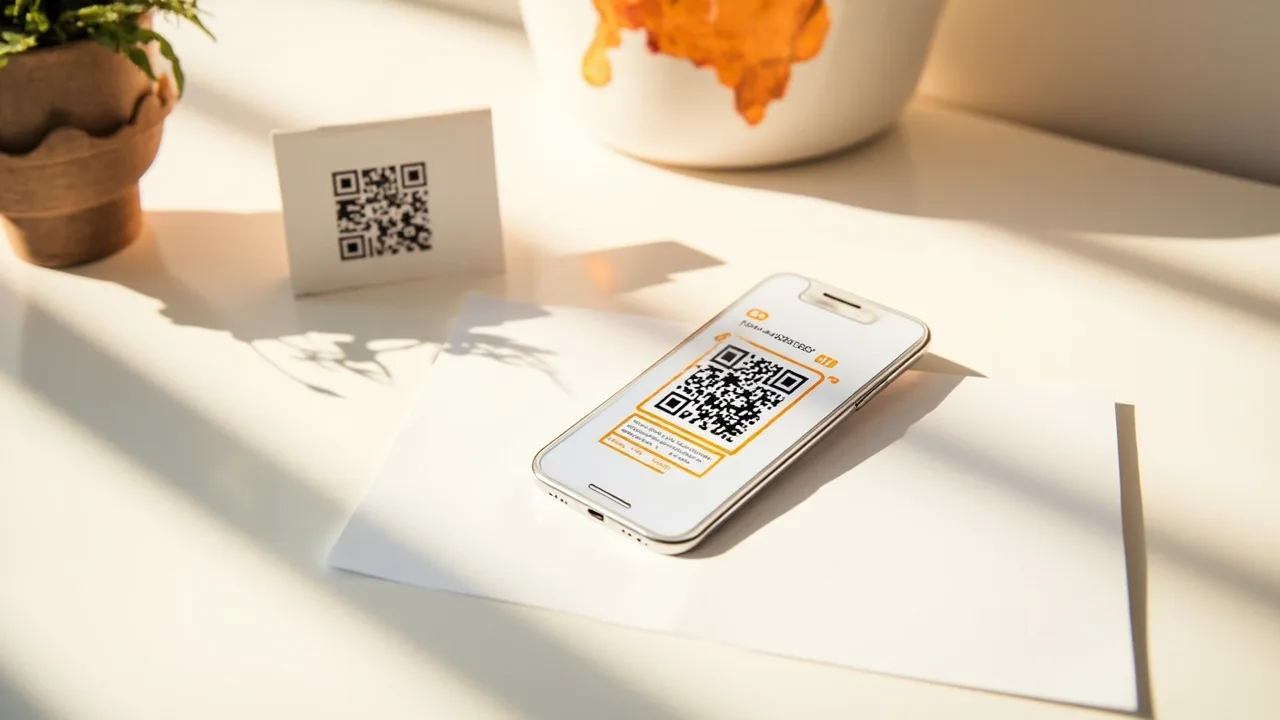
How do I create a QR code for app download?
Create a smart store-routing link with App Store and Google Play destinations, generate a QR from that link, download the image, and print it. One code routes each scan by device.
Do I need a different QR for each store?
No. One smart app download QR code routes iPhone to the App Store and Android to Google Play automatically.
Can I change the destination after printing?
Yes. Because the QR encodes a link you manage, you update the destination in the dashboard and the printed code keeps working.
How do I download an app using a QR code as a user?
Open the camera app, scan the code, and follow the store listing that opens for your phone. The publisher’s QR should send iPhone and Android to different stores automatically.
Is this page different from the QR use-case?
Yes. This guide is the how-to for creating an app download QR code. The use-case page explains the product fit for device-aware store QR codes.